Shop owners › Getting started
Add your team
Everyone who gives stamps at the counter gets their own 4-digit PIN, so every stamp shows who gave it.
Everyone who works the counter gets their own 4-digit PIN. Every stamp and every reward then shows who gave it, and the Overview shows each person's numbers.
Add a person
- Open Staff in your dashboard.
- Tap Add team member, type their name and choose the branch they work at.
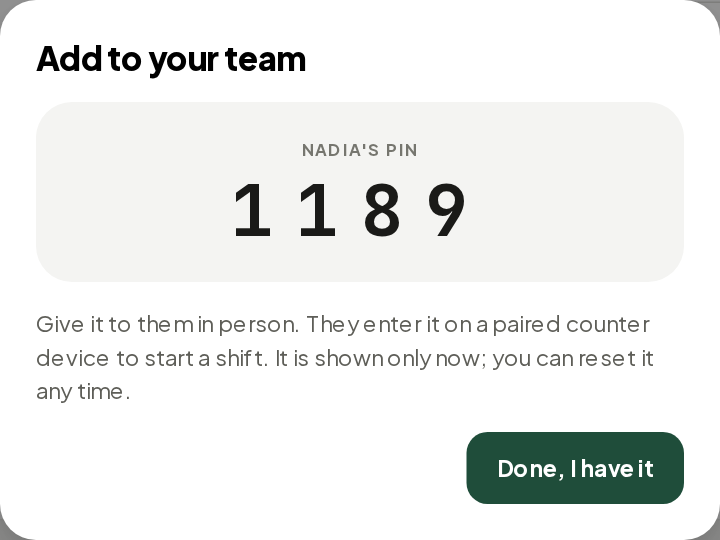
- Their PIN appears once. Tell them in person, or write it on the staff sheet.
Tip: people who only work the counter need no email. Give them a PIN. Only owners and admins sign in to the dashboard, so only they are invited by email.
Forgot their PIN
Open Staff, find the person and tap Reset PIN. The new PIN is shown once and the old one stops working at once. After ten wrong tries a counter phone pauses PIN entry for 15 minutes, so a reset is faster than guessing.
When someone leaves
Open Staff, find the person and tap Disable. Their shift ends and their PIN stops working at once. The stamps they gave stay in your history.
Owners and admins
Choose Admin or Owner when you add someone who needs the dashboard. They get an email to set a password. The link works once and for 24 hours. A shop always keeps at least one active owner.
Was this page helpful?
Not reallyThanks for telling us.
Next: Counter phones →